 ImagePerch
Long images, without losing your place.
Move between fit-to-window and actual size. Jump to either end, or use the minimap to navigate a long image.
ROOM TO SEE THE WHOLE PICTURE
An image workspace for the details and the bigger picture. Navigate long images, trim their edges, annotate, then copy or save what matters.
Windows · Standalone public release pending
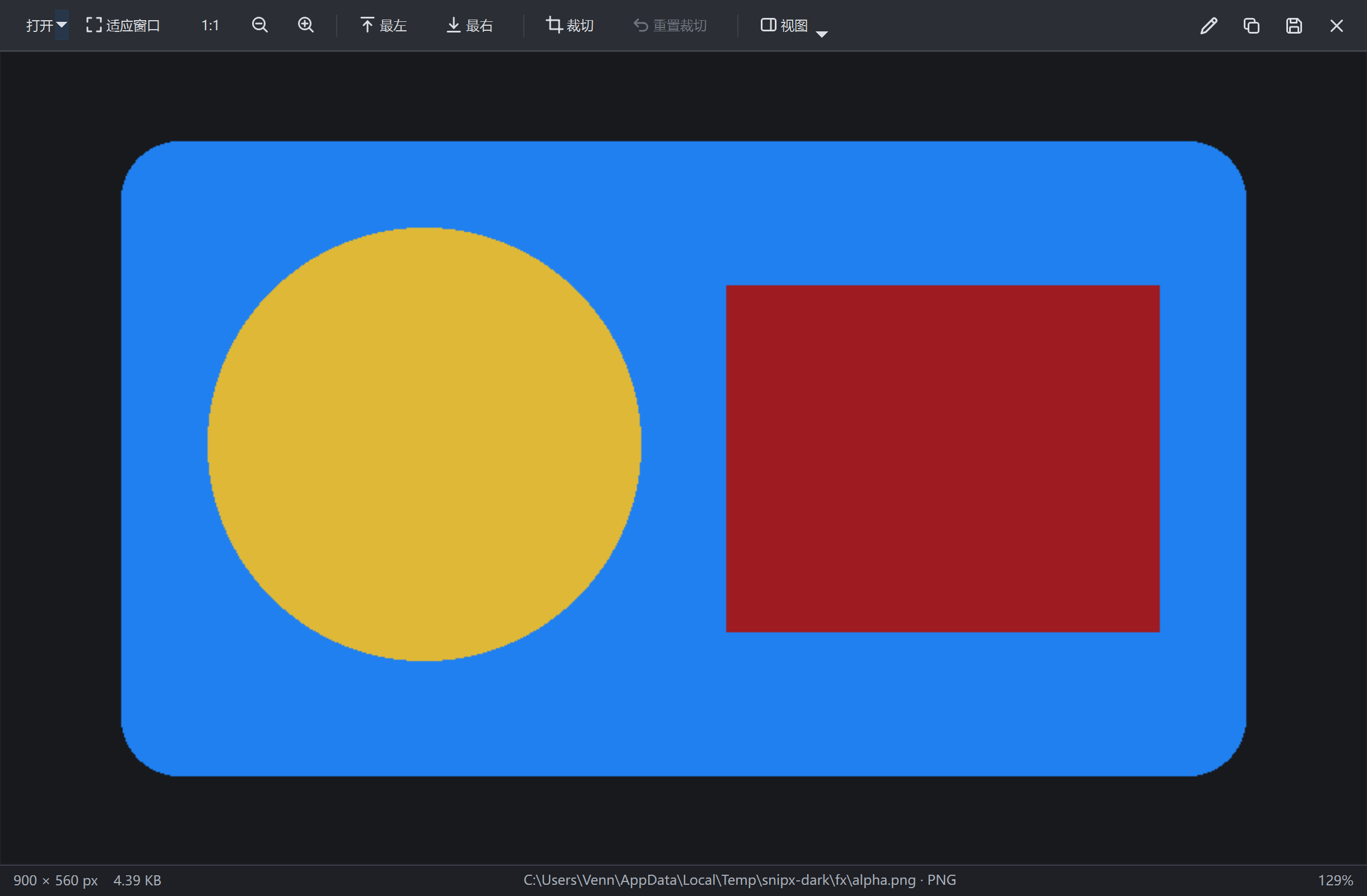
Image viewing and editing for Windows
Made for focused work ↗A WORKFLOW, THOUGHT THROUGH
A focused path from opening an image to sharing a useful result. Viewing stays simple; editing is there when you need it.
Move between fit-to-window and actual size. Jump to either end, or use the minimap to navigate a long image.
Use the trim handles to remove repeated or unwanted edges. Reset the trim to return to the full image.
Open the loaded image in the dedicated editor. Very large images may need trimming before they can be annotated.
Copy the current result to the clipboard or save a local PNG. Recent files and drag-and-drop make returning to an image straightforward.
GET INTO YOUR FLOW
Choose an image file, drag one into the viewer, or return to a recent file.
Fit the image to the window, inspect it at 100%, and trim unwanted edges.
Enter the editor if you need annotation. Copy the result or save it as PNG.
The file picker includes PNG, JPEG, WebP, BMP, GIF and TIFF. Format availability depends on the image plugins included with the build.
The viewer applies trim to its output. Use Reset trim to return to the full loaded image, and Save to write a PNG result.
Viewing and editing have different resource limits. The editor checks the image size and can ask you to trim it first.